Why handle voice memos locally
Personal notes often include unfinished thoughts, names, plans, or emotionally raw material. For many people that alone is enough reason to avoid sending them through a generic cloud transcription service.
A simple workflow
Save or export the memo to your Mac
If it started in Apple Voice Memos, get the file onto your Mac and keep that as the source recording.
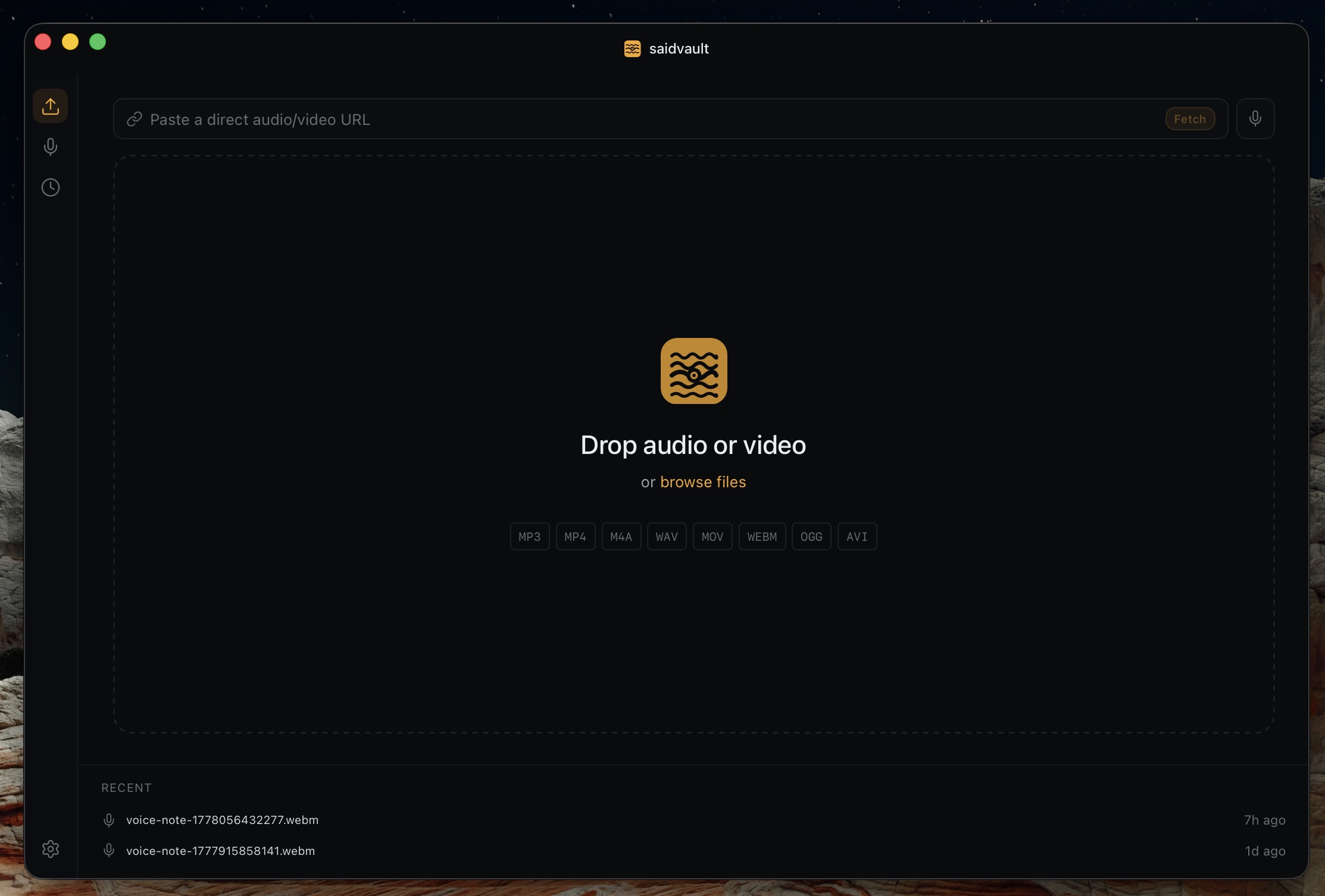
Drop it into SaidVault or record in-app
You can transcribe an existing file or record a fresh voice note directly inside SaidVault.
Choose the output you actually need
TXT or Markdown for notes, PDF for a stable shareable document, or simply copy text out and move on.
Why SaidVault is a good fit
- Voice notes are a first-class workflow, not just an afterthought.
- Transcription stays local once the model is downloaded.
- You can move from personal memo to reusable text without switching apps.
- The same app also handles longer files and dictation later if your needs grow.
Need a local home for personal recordings?
SaidVault lets you transcribe voice memos, reopen them later, and export what matters without creating another cloud copy of the recording.